
How to Use Order Presets for Faster Trade Execution
Save your usual order settings as a preset so the Buy and Sell buttons on the New Chart place trades with them in one click.
A preset saves your usual order settings, such as stop loss, take profit and position size. When a preset is on, the Buy and Sell buttons at the bottom-left of the chart place trades with those settings in one click. You can also apply a preset to the Place order window. Presets are available on the New Chart and replace Scalper Mode.
Create a preset
- In a backtesting session, click Order in the right panel.
- At the top of the Place order window, click Presets, then Create new preset.
- Enter a Preset name and set the options you want (see the table below).
- Click Save preset.
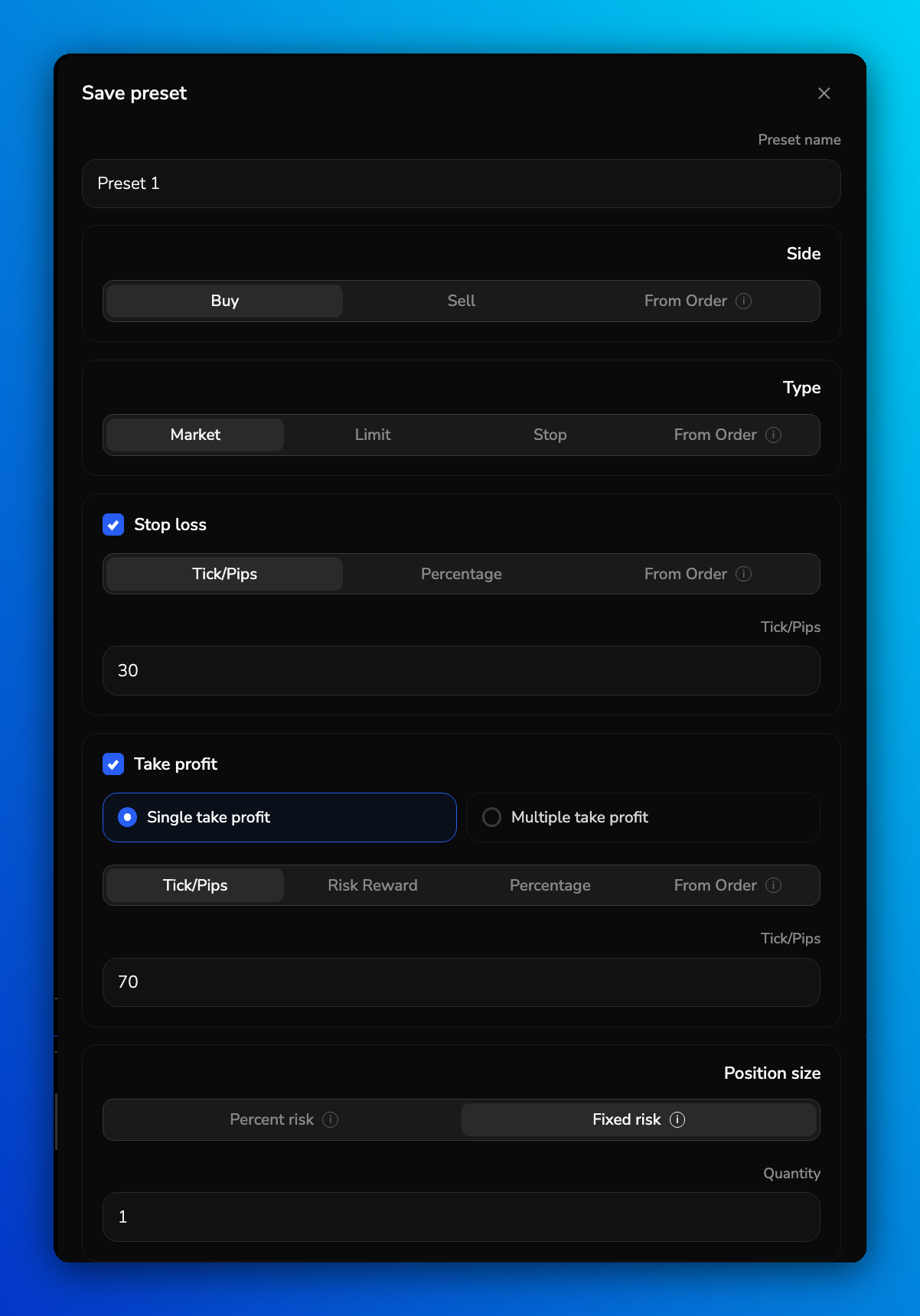
| Setting | What you set |
|---|---|
| Side | Buy or Sell |
| Type | Market, Limit or Stop |
| Stop loss | A distance in Tick/Pips or Percentage |
| Take profit | A single or multiple take profit, in Tick/Pips, Risk Reward or Percentage |
| Position size | Percent risk (0.5% to 5%, or your own value) or Fixed risk |
| Auto breakeven | A trigger in Tick/Pips or Risk Reward |
| Tags | Tags added to each trade |
| Strategy | The strategy linked to each trade |
Tick the box next to Stop loss, Take profit, Auto breakeven, Tags or Strategy to include it in the preset.
For a click-by-click guide, see this interactive walkthrough.
Use a preset with the Buy and Sell buttons
- Click the Presets button next to Buy, Sell and the units field at the bottom-left of the chart.
- Select your preset. It shows On, and the button now shows the preset's name.
- Click Buy or Sell. The trade is placed with the preset's settings.
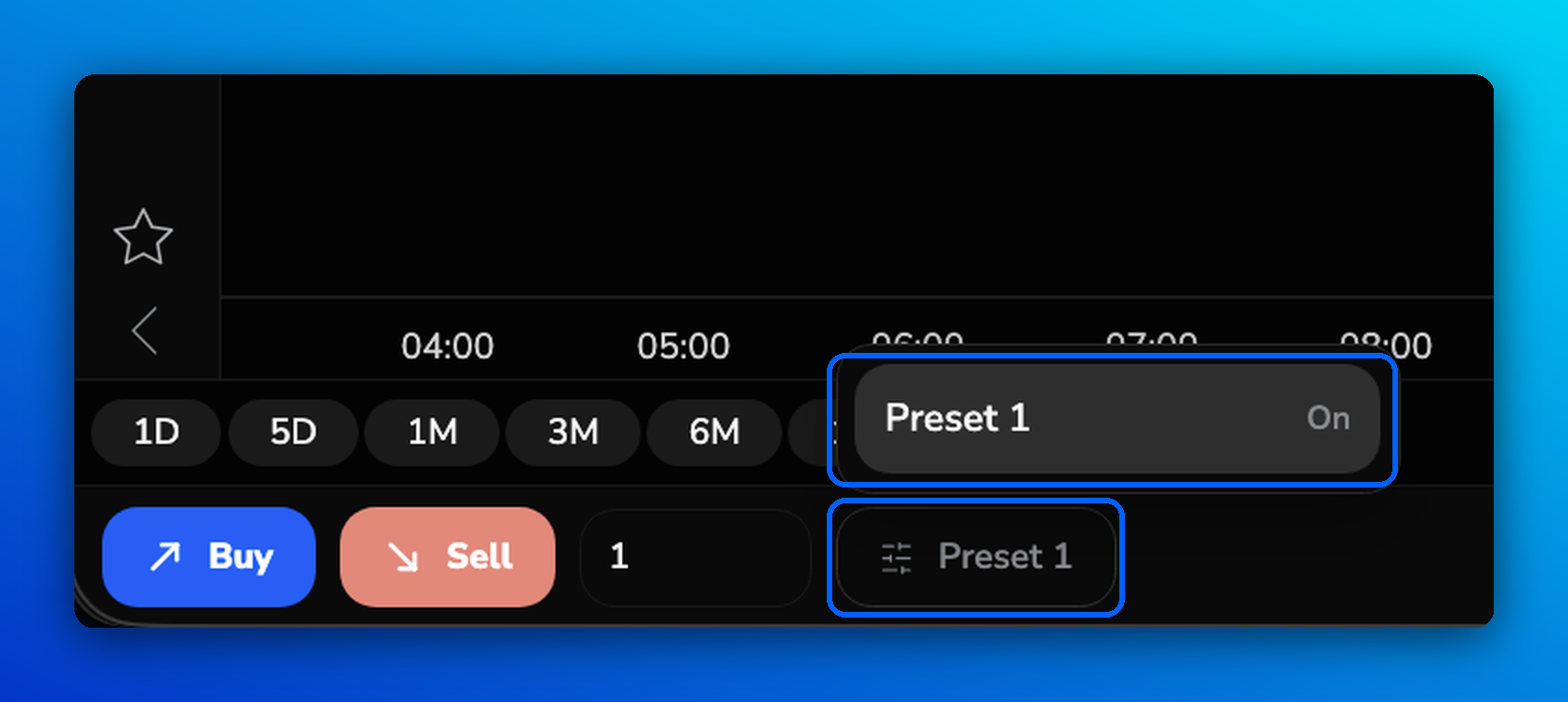
You can have several presets. The one marked On is the one the Buy and Sell buttons use.
Use a preset in the Place order window
- Click Order in the right panel.
- At the top of the Place order window, click Presets, then click your preset. Its settings fill in the order form.
- Check the values, change any you need, and place the order.
Edit, stop or delete a preset
Click Order, then Presets. Each preset in the list has these buttons:
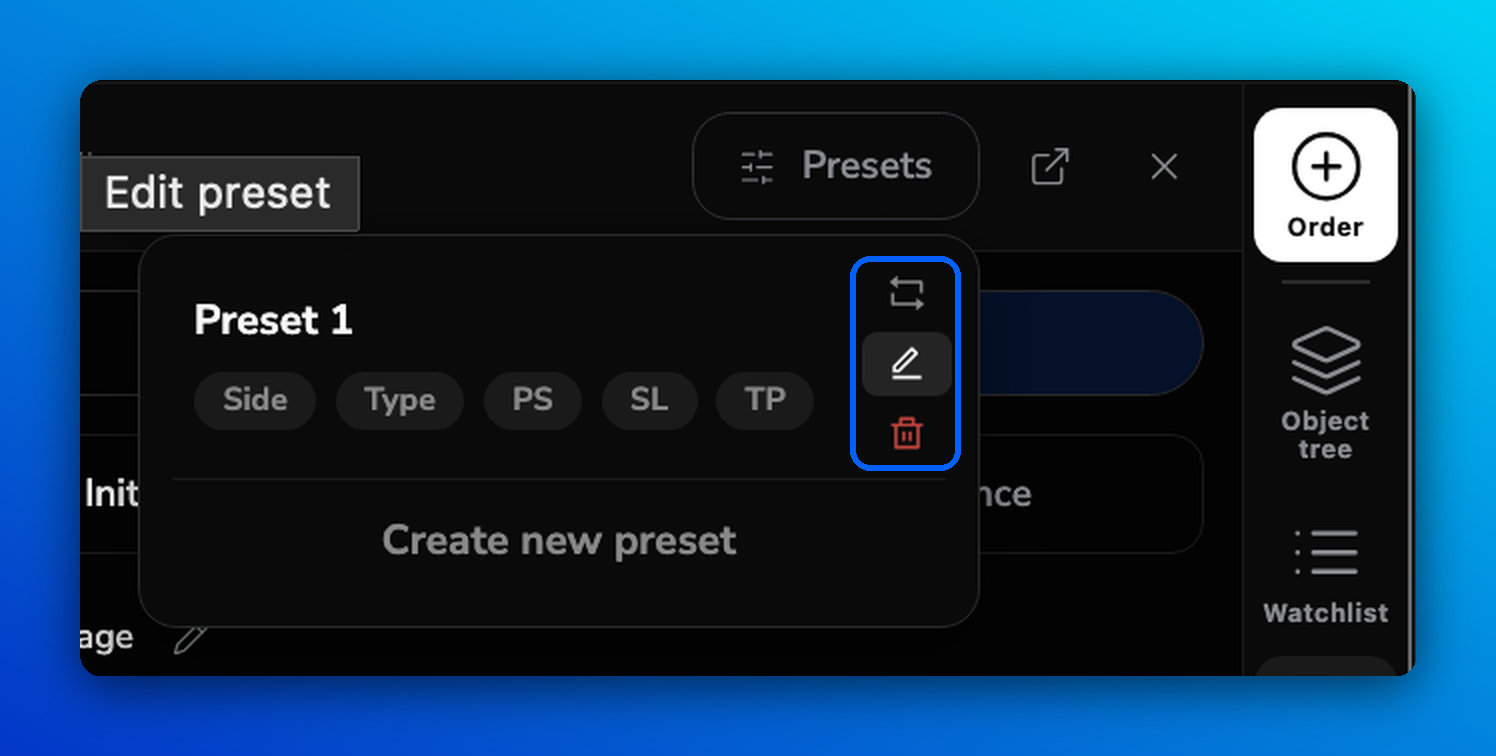
| Button | What it does |
|---|---|
| Stop auto-using this preset (⇄) | Turns the preset off for the Buy and Sell buttons |
| Edit preset (pencil icon) | Opens the preset so you can change its settings |
| Delete preset (bin icon) | Removes the preset |
Frequently Asked Questions
What happened to Scalper Mode?
Presets replace Scalper Mode on the New Chart. Save your usual stop loss, take profit and position size as a preset, then turn it on for the Buy and Sell buttons.
Does a preset change the Place order window?
Only when you choose it there. In the Place order window, click Presets and then your preset, and its settings fill in the order form. You can change any of them before placing the order.
Can I have more than one preset?
Yes. You can save several presets, and the one marked On is used by the Buy and Sell buttons.
Related articles
Keep exploring this topic.